← YC CREAT1VES
Closed beta test

On the App Store first, then Google Play.

Free to download. The full version is ₱999 a year (₱599 the first year), ₱99 a month, or ₱1,490 for life at launch (then ₱1,990). No ads.

App Store Coming soon Google Play Later
What’s free and what’s in the full version →
  • Closed beta
  • iPhone first, then Android
  • Built for the Philippines
Waldazz app icon

Waldazz

Spend smart. Live more.

Any-Juan’s app

“How much will I have on payday?”

Waldazz is a money forecasting app for Filipinos, from a first sweldo to a family's bills. Add your accounts, bills, loans and sweldo once, and it shows you what you'll have on any date, what's safe to spend each day, and, before you buy something big, whether it fits and when it will. It keeps a soft copy of your IDs too, for the day your wallet stays home.

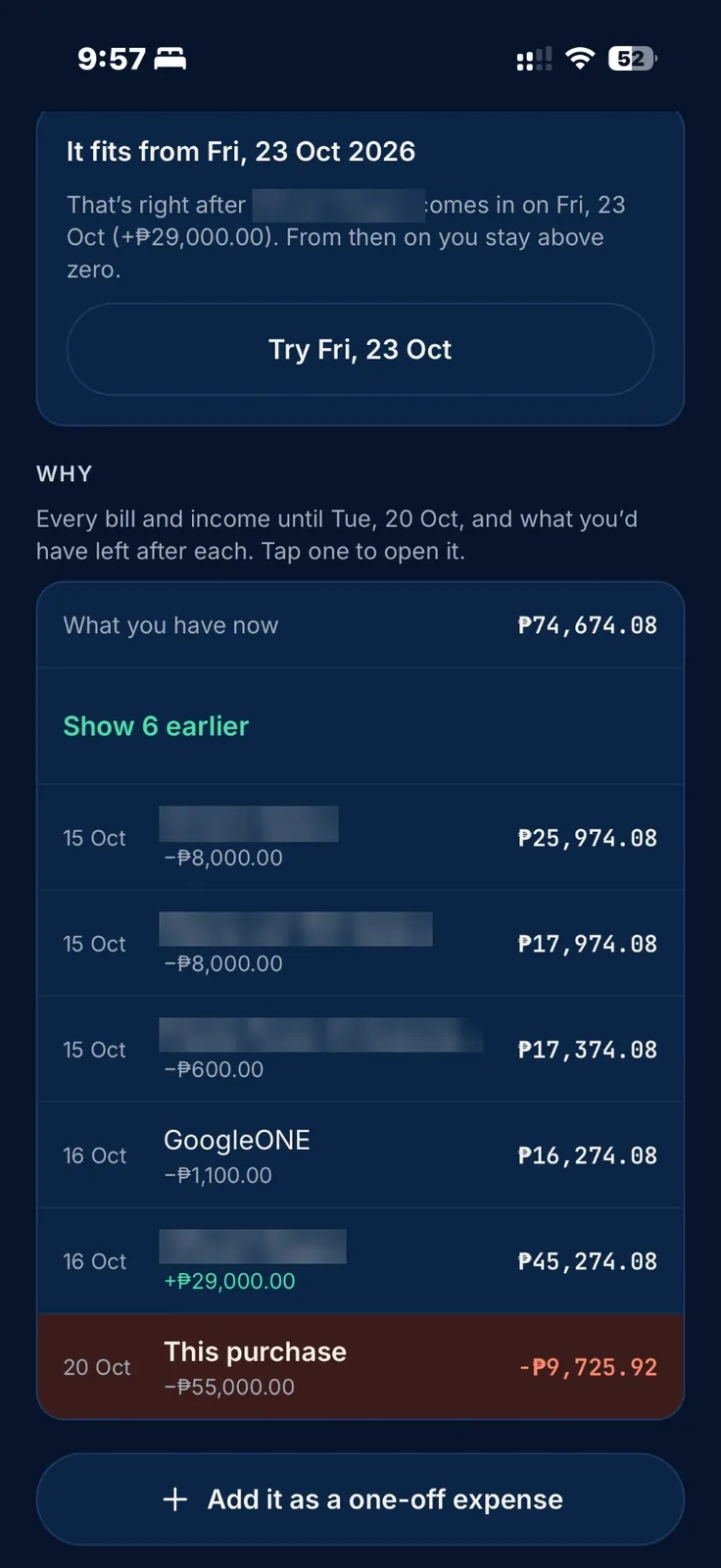
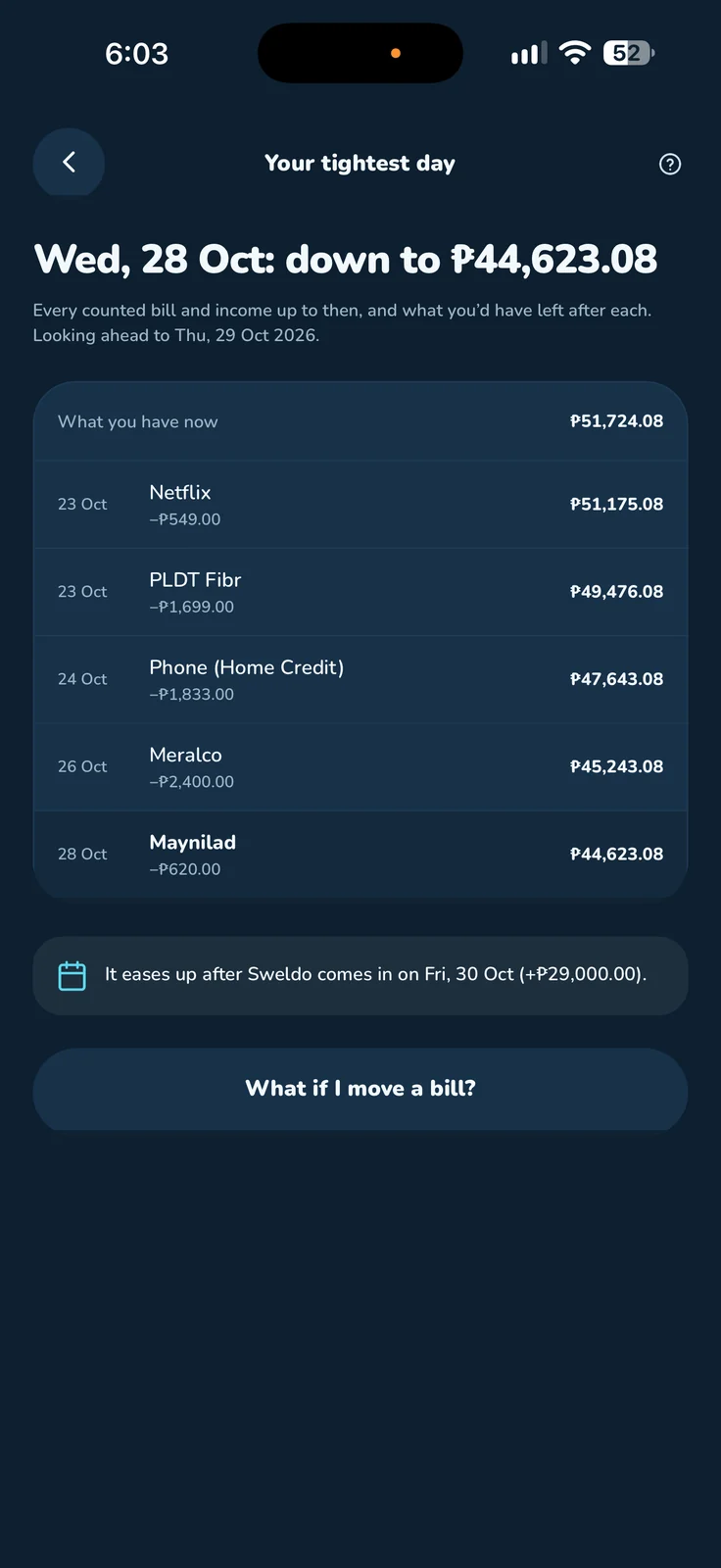
Waldazz: your tightest day, with every bill and the balance after each
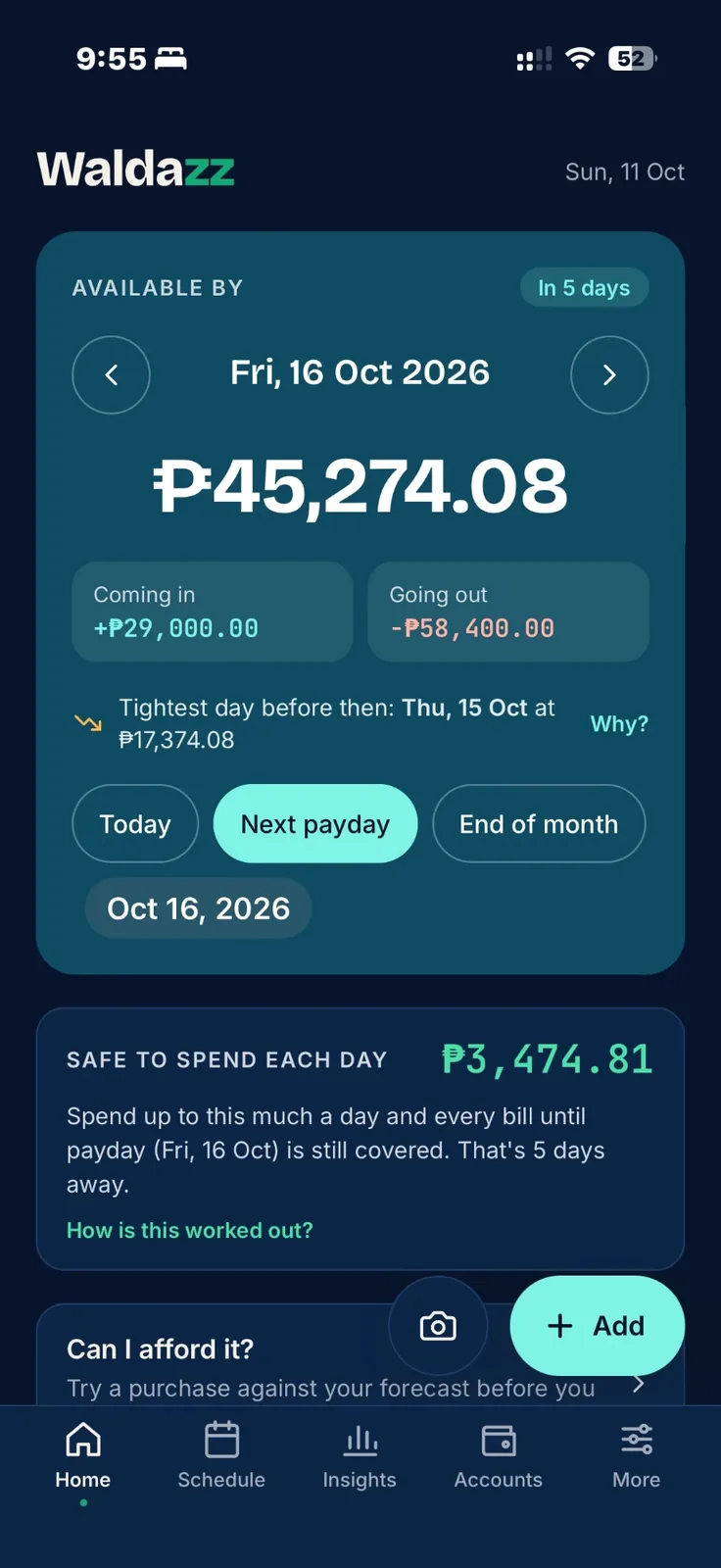
Waldazz home: available by next payday, and safe to spend each day
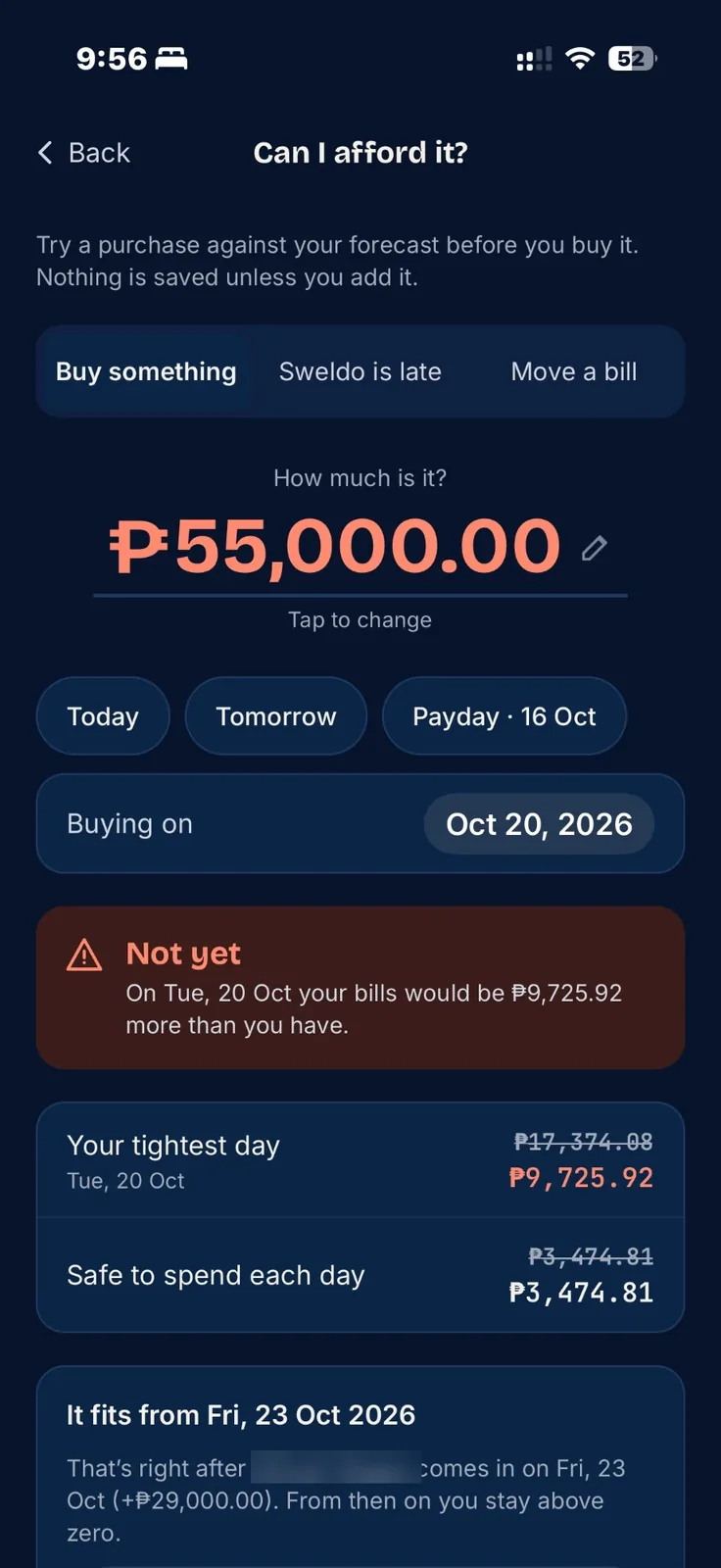
Waldazz: Can I afford it?

Why I built it

Three apps and a spreadsheet. Now, one.

For years I tracked my money in three different apps, and an Excel sheet to boot. Each one held part of the picture, and putting it all together was confusing.

And every time, the same temptation came back: just stop tracking.

So I built Waldazz from scratch: one app that records everything I need, from sweldo and bills to loans, utang and paluwagan, and shows what it all means for payday.

If juggling apps has ever made you want to give up on tracking, this one's for you.

Yong C.Designed & built Waldazz

Why it matters

Most Filipinos are one surprise away from utang.

These numbers come from the Bangko Sentral's 2025 Consumer Finance and Inclusion Survey and other recent studies. Each one comes with the part of Waldazz that helps.

3 in 10

Filipino adults have savings that could absorb an unexpected expense. The other 7 would have to borrow or go without.

In Waldazz: set a Cushion and add a Savings item every payday, so the emergency fund grows before you spend.

BSP Consumer Finance and Inclusion Survey 2025
6 in 10

Filipino families can't pay a ₱10,000 hospital bill outright.

In Waldazz: Can I afford it? shows in seconds whether a sudden expense fits, and on which day it would.

BCG, The Filipino Family study, 2025
32%

of loans taken in 2025 went to food and basic needs, the biggest reason Filipinos borrow. Borrowing to eat usually means the money ran out before payday.

In Waldazz: Safe to spend each day keeps the money for rent and bills out of your daily budget, so the last week before sweldo isn't empty.

BSP CFIS 2025, via GMA News

What Filipinos borrowed for, 2025 (% of loans)

Food & basic needs
32%
Education
15%
Health
14%
Farming
10%
Starting a business
9%
Household bills
9%
Home repairs
8%
Bars drawn on a 0–40% scale
34%

of borrowers often struggle to make their payments, and 8% take a new loan to pay an old one.

Pay easilyOften struggleBorrow to pay a loan

In Waldazz: every loan shows what's left and when it ends. Extra money tells you which loan a bonus should go to first.

BSP CFIS 2025, via GMA News
57%

of retail payments in the Philippines were digital in 2024 (GCash, Maya, cards, bank apps), up from 53% a year earlier. Money now leaks out in small taps.

In Waldazz: add every e-wallet as an account and log taps as a Spend. It takes five seconds.

BSP Status of Digital Payments 2024
How Waldazz thinks

It looks ahead to your tightest day, and plans around it.

Most budget apps tell you what you spent. Waldazz tells you what you can still spend. Here's one sweldo, from payday on the 15th to payday on the 30th.

Balance from payday to payday Example: ₱27,500 on payday the 15th. Rent, Meralco, internet and a loan bring it down to ₱11,201 on the 25th, the tightest day. The next sweldo on the 30th brings it back up. With a ₱3,000 cushion, ₱8,201 is free to spend over 15 days, about ₱546 a day. ₱0₱10k₱20k₱30k₱40k 15 Oct202530 Oct Cushion ₱3,000 Sweldo ₱27,500 Rent −8,000 Meralco −2,400 Internet −1,699 Loan −4,200 Tightest day ₱11,201 Next sweldo Free to spend ₱8,201

Safe to spend, worked out

Tightest day before payday ₱11,201
− your cushion ₱3,000
= free ₱8,201
÷ 15 days to payday
= ₱546 a day

The big bill on the 25th is already set aside on the 15th. You won't spend the rent money by accident, because Waldazz never counts it as yours to spend.

Payday every 15th and 30th isn't an accident. The Labor Code says wages are paid at least twice a month, no more than 16 days apart. Waldazz is built around that rhythm.

Available by

The big number on Home. What you'll have on a date you pick, after every bill and every income until then. Tap Next payday or End of month.

Safe to spend each day

Your daily allowance until payday. Spend under it and every bill is still covered. The bar turns amber at 80% of today’s amount, and red if you go over.

Cushion

An amount you never want to drop below. Waldazz keeps it out of your daily allowance.

Maintaining balance

The minimum your bank makes you keep. Waldazz never counts it as spendable.

Counted / not counted

A counted account is money you use. Turn it off for money you never touch, like an emergency fund or MP2.

Spend vs bill

A Spend is something already bought (food, fare, fuel). A bill is something coming up that you'll pay.

Tightest day

The lowest your money gets before the date you picked. On Home, tap Next payday or End of month, then Why? to see every bill that brings it there.

Worth a look

A short check-up on Home: a balance not updated in a month, a bill days overdue, a spend logged twice, or a set-up step that would help. It only shows when something needs a look, and Not now hides one that doesn’t apply.

Savings goal

A target for a Savings item, with an optional date. Waldazz shows how far along you are, and what each saving needs to be to make it.

Can I afford it?

Not just yes or no. Why, and when.

Type the price and the day you want to buy. Waldazz runs it through every bill and every sweldo coming up, and answers the way a friend who knows your money would.

Not yet. On the 20th your bills would be ₱9,725.92 more than you have. It fits from the 23rd, right after your sweldo. Condensed from a real answer on my own phone
  1. The verdict. Yes, tight, or not yet, and how low your money would go.
  2. The why. Every bill and income until your tightest day, with what you'd have left after each.
  3. The day it fits. The first safe date, and the sweldo that makes it safe. Tap Try to check it.
Can I afford it? Yes, with the tightest day and Safe to spend before and after
Why: every bill until the tightest day, with the balance after each

Try it

Kaya ko ba ’to?

The sweldo from the chart above: ₱27,500 on the 15th, rent, Meralco, internet and a loan before the next one on the 30th, and a ₱3,000 cushion. Pick something to buy today.

₱2,500
Yes

Yes. On the 25th, your tightest day, you’d still have ₱8,701, above your ₱3,000 cushion.

Tightest day, 25 Oct₱8,701
│ your ₱3,000 cushion
Safe to spend now₱546 a day
After you buy it₱380 a day

An example worked out the way the app does it. In Waldazz, the answer comes from your own accounts, bills and sweldo, and you can pick the day you’d buy.

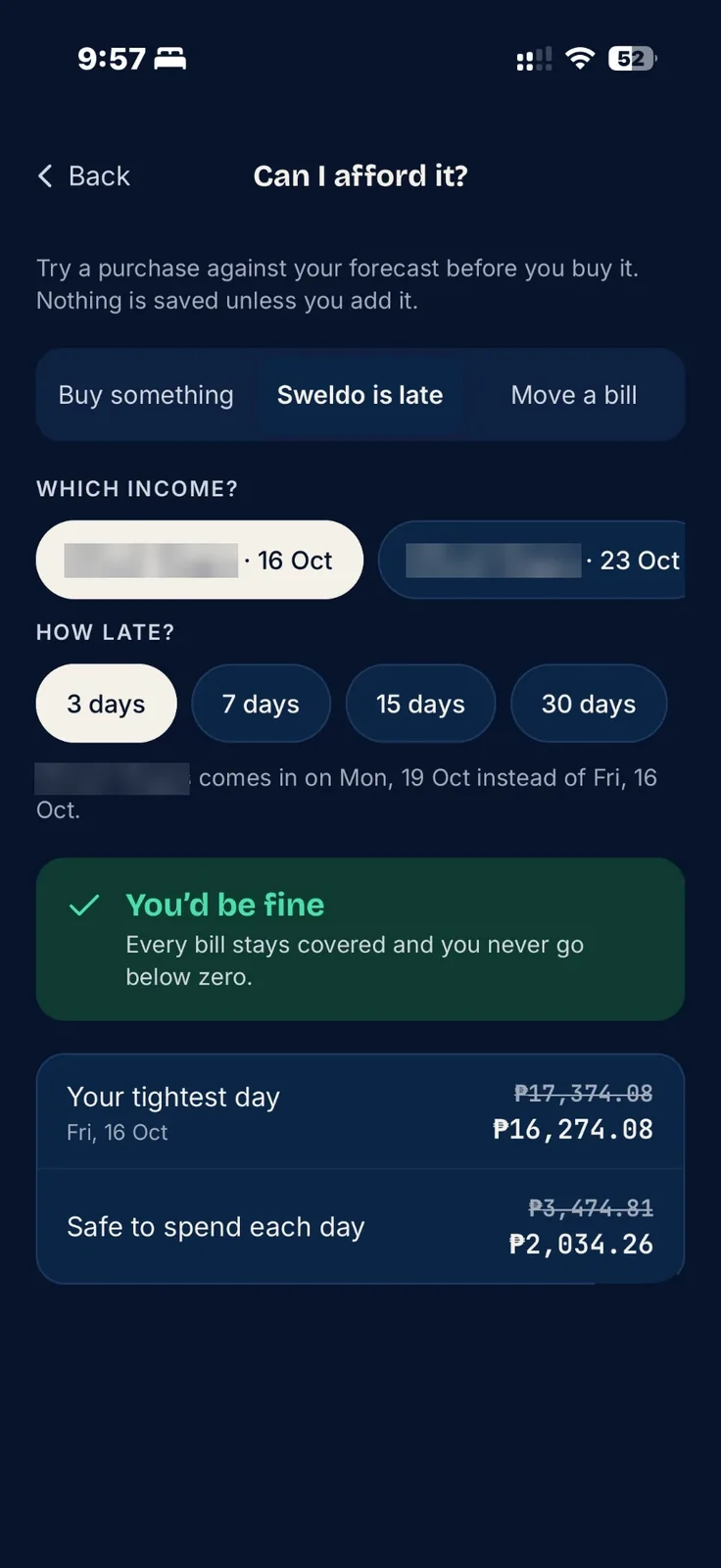
What if my sweldo is late? Three days late, every bill is still covered

What if the sweldo is late?

Pick the income and how late it might be, from 3 to 30 days. Waldazz shows whether every bill is still covered, and what happens to your daily number.

Move a bill works the same way: pick a bill and a new date, and see what it does before you ask for more time.

Nothing is saved until you add it, so you can try as many as you like.

What it does

Payday to payday, planned ahead.

Payday forecast, any date

Know your payday balance before payday.

Step day by day, or jump to today, next payday or end of month. It also flags your tightest day before then.

Safe to spend each day

One number a day. Stay under it, and every bill is covered.

Worked out from every bill until payday, after a cushion you choose.

See why it’s tight

Find the bill that eats your sweldo.

Pick Next payday on Home and tap Why? for every bill between now and your tightest day, and what you’d have left after each.

An early heads-up

Yellow while you’re fine. Red when you’re not.

Safe to spend stays sunny yellow, and turns red the moment you spend past today’s amount or come up short before payday. Waldazz also warns you days ahead when money gets tight.

AlertsNew

Everything that needs a look, in one place.

The bell on Home lists a bill past its date, money that should have come in, an ID or registration coming due, a balance not updated in a month, a spend logged twice, plus suggestions like a savings goal that’s falling behind. Tap one to go where it’s fixed.

Your progressNew

From Waldas to Wais, one good day at a time.

Levels, a daily check-in streak, bills paid on time in a row, a forecast health score, a sweldo report card on payday and 22 medals to earn, with Tarsi the tarsier cheering you on. Points come from paying on time and saving, never from spending.

Ipon challengesNew

Fill the alkansya, one hulog at a time.

The 52-week challenge, every ₱20 bill, the 365 chart, a no-spend week, or your own target. Each hulog can move money into your savings account, or just count the coins in your real alkansya.

Receipts that fill the formNew

Snap it. The amount is already there.

Take a photo of a receipt, or pick a GCash, Maya or bank screenshot, and Waldazz reads the amount, the store and the date on your phone. It only fills what’s blank, never saves by itself, and the photo never leaves your phone.

Mark paid from the reminderNew

Paid it? Tap once, even on your watch.

Bill reminders come with a Mark paid button on the lock screen and on Apple Watch, and the evening reminder lets you check in with No spends today.

Tipid TipsNew

A new issue every month.

Money tips for Filipino life, like planning your 13th month before it arrives. On Home at the start of the month, with every issue in More.

Household staff payNew

Ate’s sweldo, worked out to the day.

Add your kasambahay, driver or assistant with their work days and pay schedule. On payday, enter absences or extra days; leave, loans and cash advances are already counted. Waldazz shows what to hand over.

Spending insights and chartsNew

Where did the sweldo go? Now you can see it.

Six months of money in and out, your spending through the month against last month, and your loans month by month until the last hulog.

Loan and utang tracker

Every hulog counted, down to the last one.

Flat or diminishing-balance loans with full payment plans, payment holidays and lender promos, set up one question at a time. A loan taken off a sweldo comes off that payday, and one from before Waldazz keeps its count.

Pay when ableNew

Utang sa pamilya: no interest, no pressure.

Borrowed from (or lent to) family with no set amount? The reminder says “Pay what you can”, any amount comes off what’s owed, and a skipped month is never overdue.

Gentle or Firm reminders

Singil, without the hiya.

When someone owes you, send a ready reminder through Messenger, Viber or SMS, in English, Taglish or Cebuano to match your app. You pick the tone.

Paluwagan tracker

Know your turn, and when the pot lands.

Your hulog each round, your turn to take the pot, and the organiser’s fee.

Lock-in contractsNew

The lock-in ends. The bill doesn’t.

Gym, phone plan, internet: “Payment 5 of 12 · lock-in”, then it stays in your forecast after, at a lower amount if it drops once the handset is paid off.

Savings goals

Ipon that doesn’t wait for “kung may matira”.

Set a target and a date. It shows how far along you are, and how much each saving needs to be to make it. Extra money you transfer in counts too.

Extra money

Make your 13th month work twice.

Got a bonus or your 13th month? See which loan it saves the most interest on.

Transfers, now or later

Moving money isn’t spending it.

Move money between GCash, the bank and cash with the fee, or plan it for a later day. Your total only changes by the fee.

For OFWs: padala and balikbayan boxes

Sweldo in riyal. Every plan, for home.

Your currency, each padala with its fee and what they receive in pesos, balikbayan boxes, and the days until you go home. How it works

Lotto checker

Did I win? Ask your phone.

Pick or save your numbers, see the cost of every draw, and check each bet against the latest results. Every winning bet waits in a list with its claim-by date until you mark it claimed. See a ticket

Your wallet: IDs, cards and vehicles

Wallet at home? You’re still covered.

Your IDs, bank cards and your car’s OR and CR, behind Face ID and folded away until you tap Show photos. Snap them and Waldazz fills in the details: expiry dates, a license’s medical exam windows, and the LTO renewal week for your plate, each with a reminder. Only on your phone. Check your plate’s week
Built for Filipino money

  • Maintaining balances
  • 15th & 30th sweldo
  • E-wallets & cash
  • Paluwagan
  • Kasambahay pay & leave
  • Utang sa pamilya
  • Lock-in contracts
  • Fixed-term loan promos
  • BSP exchange rates
  • English, Filipino & Cebuano
  • No bank linking
  • Your IDs, cards and OR/CR, on your phone
  • Padala, balikbayan boxes & your currency abroad

For Filipinos abroad

Sweldo in riyal. Every plan, for home.

You left for one reason: so the family back home can have more. Then the money starts pulling in four directions at once. Rent where you are, the padala on the 15th, the box you’re filling for Christmas, the papers that expire, and the day you finally fly home. Waldazz keeps all of it in one place, in the money you’re paid in.

  1. Day one abroad. Turn on Are you based abroad? and pick your currency: riyal, dirham, Hong Kong dollar, yen and more. Every amount shows in it. One currency, no mental maths.
  2. Every 15th, the padala. The amount, the fee, and what Mama actually receives in pesos at the BSP rate (or the rate you were given). It sits on your schedule like a bill, so Safe to spend already leaves room for it.
  3. The balikbayan box. What’s inside, the forwarder, the tracking number and when it should land. Tap Mark it arrived when they send the photo.
  4. Papers that expire. Iqama or Emirates ID, visa, work permit, OEC, passport, OWWA: in My IDs behind Face ID, with reminders two months and one month before each one runs out.
  5. The countdown. Set the day your contract ends and Home shows how many days are left, with a reminder a month before, in time for the last padala, the last box and the pasalubong.

Waldazz doesn’t send or exchange money; it plans. Use the remittance service you trust, then log it in seconds. The rate shown is the BSP reference rate, so check what your provider gives.

Pricing

Free to start. Then pay the way you like.

Free

₱0to download and keep
  • 5 accounts: banks, e-wallets, cash and cards. Loans and paluwagan count toward the 5.
  • 15 items you set up: bills, income, savings and planned transfers. A bill that repeats every month is 1 item.
  • Unlimited spends, so logging what you buy every day never hits a limit.
  • Your wallet: 5 IDs, 2 bank cards and 1 vehicle.
  • Everything else: Safe to spend, Can I afford it?, reminders, in English, Filipino or Cebuano.
Launch prices

Full version

  • Yearly₱999a year₱599 for the first year, paid up front
  • Monthly₱99a month
  • For life₱1,490once₱1,990 after launch. Yours for good, updates included
  • Unlimited accounts and items, for every bill, loan and paluwagan in the family, and every ID, card and vehicle.
  • If a subscription ends, nothing is deleted or hidden. The first 5 accounts, 15 items, 5 IDs, 2 cards and 1 vehicle you added keep working fully; the rest turn read-only until you renew. Spends, payments, backups and the app lock always work.
  • Unlocked inside the app, from the free version you already have. Nothing to reinstall.

Subscriptions renew automatically until you cancel in your Apple ID settings. Prices in pesos on the Philippine App Store.

No ads in any version. No bank linking, no account to sign up for. Your data stays on your phone either way. Waldazz is in development: these are the prices it launches with on the App Store.

Lotto

Your tickets, kept track of.

Lots of us bet, and most of us have lost a slip in a wallet. Waldazz keeps the numbers, the draws, what it costs and whether you won in one place. Keep the paper ticket too: it’s what PCSO pays on, so sign the back and keep it safe.

  1. Pick. One step at a time: the game, then Lucky Pick, your saved favourites, or your own numbers tapped on the game’s number board. 6/42, 6/45, 6/49, 6/55 and 6/58, plus 6D, 4D, Swertres and EZ2, one game or several at once.
  2. Plan the draws. One ticket can play the same numbers for up to 6 draws in a row, and Waldazz shows the dates.
  3. Know the cost. Bets × draws × price per bet, at PCSO's current ₱25 a bet for the 6-number games.
  4. Log it. Each bet goes in as one spend, under Gambling, from the account you paid with, so your forecast and Safe to spend stay right.
  5. See if you won. Tap Get results and your matches light up, with how many of your bets won and what each could pay, using the winning numbers published by lottopcso.com and GMA News. Or type them yourself. A win gets a little celebration.
  6. Claim it. Every winning bet, even 3 numbers, waits under Winning bets to claim with the draw date (to find the right paper ticket), where to claim a prize that size (up to ₱10,000 at any lotto outlet or PCSO branch; over ₱10,000 at a PCSO branch or the main office; over ₱300,000 at the main office) and its Claim by date, a year after the draw. Bring the signed ticket and two government IDs. Tap Claimed once the prize is yours.

Just for fun: every combination has the same chance, and Waldazz doesn't sell tickets or predict draws. You must be 18 or older to bet. Waldazz is independent: it isn’t made, endorsed or run by PCSO. Its list is a reminder and a spending log, not proof of ownership; PCSO pays whoever holds the signed paper ticket. Results come from lottopcso.com and GMA News, not PCSO, so always check PCSO’s official results before you celebrate or claim.

Screens

Straight from my iPhone.

Tap any screen to see it larger. The money in these is made up for the demo.

Get started · about 10 minutes

Set it up once, in this order.

The order matters. Accounts first, then the money coming in, then the money going out. The + button on any tab opens “What are you adding?”.

1

Add every place your money lives

Accounts → Add account
  1. Tap Accounts at the bottom of the screen.
  2. Tap Add account.
  3. Under Type, tap Bank, E-wallet, Cash or Credit card.
  4. Open your bank or GCash app, copy today's balance and type it in Balance right now. You only do this once.
  5. Type a Name, like BPI Payroll or GCash.
  6. If your bank has one, type the Maintaining balance (for example ₱3,000).
  7. For an emergency fund or MP2, turn Count in available money off.
  8. Tap Save (top right).

Do it for all of them: payroll account, GCash, Maya, wallet cash, cards. If one is missing, your numbers will be off. The first time you open Waldazz, it asks for these straight away: tap + Bank account, + E-wallet and so on, then Continue.

2

Add your sweldo

+ Add → Income
  1. Tap + Add (bottom right), then Income.
  2. Type what actually lands in your account (take-home pay, not gross).
  3. Type a Name, like Sweldo.
  4. Set the First due date to your next payday.
  5. Under Repeats, tap Twice a month. Under Paid on, tap 15th & 30th (or your own days).
  6. Under Goes to, tap the account it lands in.
  7. Tap Save.

Freelance or OFW padala? Add each one as income with its own date. If you're not sure it will come, turn off Count in my forecast before you save.

3

Add your regular bills

+ Add → Bill
  1. Tap + Add (bottom right), then Bill.
  2. Type the amount and a Name, like Meralco.
  3. Set the First due date.
  4. Under Repeats, tap Monthly. For AC cleaning or insurance, set Every to 3, 6 or 12 months.
  5. Under Pay from, tap the account it comes out of.
  6. Under Reminder, tap 1 day before.
  7. Tap Save. Then do the next one: rent, water, internet, phone, tuition, insurance, the helper's salary.

A bill with a set number of payments that started before today? Under Ends, tap After a number of payments, then set Payments already made. A plan with a lock-in? Tap Lock-in, then keeps going instead. Paying a kasambahay or driver? Add them under More → Household staff, so absences and leave are counted.

4

Add loans and utang (both ways)

+ Add → Borrow money · Lend money
  1. Tap + Add (bottom right), then Borrow money. If someone owes you, tap Lend money. Waldazz asks one thing at a time; tap Next after each.
  2. Type the amount, the name under Borrowing from (or Who's borrowing) and the date.
  3. Pick how it's paid back: The same amount each time (like Home Credit), Interest on what's still owed, A plan with different amounts (payment holidays, a bigger payment along the way) or Whenever I can.
  4. Fill in what you know: the payment or the interest rate, how often, and the first payment date. For a plan, add each part in order on the next screen.
  5. Pick the account the payments come from. If it's a salary deduction, tap No account, then Deducted from my salary.
  6. Check the summary and the Payment table, then tap Save loan.

A loan from months ago? Set the date it started: Waldazz picks Already spent under Money received into, so no money moves now, and later asks how many payments are already made. Home Credit? Turn on Last payment free if all are on time. To change a loan later, open it and tap Edit: everything is on one page there.

5

Set your cushion and turn on the heads-up

More → Cushion
  1. Tap More at the bottom of the screen.
  2. Under Cushion, type an amount in Keep at least. Start with a week of groceries and fare. Raise it later.
  3. Turn on Heads-up when money gets tight. Waldazz warns you if any day in the next two weeks dips below it.
  4. If others use your phone, turn on Lock with Face ID under Privacy.

Done. Tap Home. The big number and Safe to spend now reflect your real life.

The habit

30 seconds a day. 5 minutes a payday.

Waldazz only knows what you tell it. Keep it up to date and it stays right.

Every day

Look, log, done.

30 seconds
  • Open Home. Read Safe to spend each day.
  • Bought something? Tap + Add, then Spend. Type the amount, tap Food or Transport, then Save.
  • Paid a bill? Tap the circle beside it in Due soon, then Record.
  • See Worth a look? Tap the line and fix it.
Every payday

Pay yourself first.

5 minutes
  • Record your sweldo: tap the circle beside it, fix the amount if it was different, then Record.
  • Record your Savings item before anything else.
  • Tap the Next sweldo card on Home: see what this sweldo covers and what's left.
Once a month

Check the leaks.

10 minutes
  • Open Insights: where the money went, by category.
  • Look at What you owe and your debt-free date.
  • Make a backup: More → Back up, then Save to Files (iCloud Drive) or Google Drive.
“What do I tap?”

Real situations, tap by tap.

Every day

You bought something.

Log it as a spend. It takes five seconds.

  1. Tap + Add (bottom right), then Spend.
  2. Type the amount.
  3. Tap a quick name (Coffee, Food, Groceries, Transport, Shopping) or type your own under What for.
  4. Under Paid from, tap the account.
  5. Tap Save.

Have the receipt? Tap the camera button beside + Add and snap it (hold the button to pick a GCash or Maya screenshot from Photos). Waldazz reads it on your phone and fills in the amount, the store under What for, and the date and time printed on it. Check them, pick the account, and tap Save. A faded receipt may not read: just type the amount.

You paid a bill.

Mark it paid, and the money comes off the account.

  1. On Home, find the bill under Due soon (or open Schedule).
  2. Tap the circle on its left.
  3. Check the amount. Change it if you paid something different.
  4. Leave Paid on as today, or tap it and pick the day you really paid.
  5. Under Paid from, tap the account.
  6. Tap Record.
Your sweldo came in.

Record it, so Waldazz knows the money landed.

  1. On Home, find it under Due soon, or open Schedule.
  2. Tap the circle on its left.
  3. Change the amount if a different amount landed.
  4. Under Received in, tap the account.
  5. Tap Record.

Then record your Savings item the same way, before anything else.

Your bill came in lower than the amount you planned.

Record what you actually paid. Nothing is left owing.

  1. Tap the circle beside the bill (Home or Schedule).
  2. Type what you actually paid. The planned amount is filled in, so change it.
  3. Leave Keep … still due off. For a bill that repeats, like electricity, it starts off.
  4. Tap Record.
You paid a bill, but not in full.

Record what you paid and keep the rest due.

  1. Tap the circle beside the bill (Home or Schedule).
  2. Type what you actually paid.
  3. Turn on Keep … still due. For a one-off bill it is already on.
  4. Under Due on, pick when the rest is due.
  5. Tap Record.
You tapped the wrong thing.

Everything can be undone.

  1. On Home, scroll to Paid recently.
  2. Tap Undo beside the payment, or Remove beside a spend.
  3. Confirm.

Older than a week? Open the item, tap the payment under History, and change or delete it.

The bell on Home has a number.

Alerts: what needs a look, and a few suggestions.

  1. Tap the bell at the top right of Home.
  2. Under Needs attention, tap a line to go where it’s fixed: record an overdue bill or move its date, record money that came in, update a balance, or renew an ID.
  3. Under Suggestions, tap one to try it, or tap Not now to hide it for good.

The number counts what’s new since you last looked: red when something needs fixing, green when it’s only suggestions. Home’s Worth a look shows the first three; tap See all in Alerts for the rest. Two of the same spend on one day, and both are real? Tap Both are right.

You didn’t buy anything today.

Check in, so your streak keeps going.

  1. After 6 PM, tap No spends today? Check in on Safe to spend, or No spends today on the evening reminder.
  2. The flame beside your level turns orange: today counts.

Logging a spend checks you in too. One missed day a week is forgiven. Tap your level to see Your progress: streaks, the forecast health score and your medals.

You want proof you paid.

Keep the receipt or confirmation with the payment.

  1. Tap the circle beside the bill.
  2. Tap + Add a receipt photo, then Snap receipt or From photos (a GCash or bank screenshot works).
  3. Waldazz reads it on your phone: if you haven't changed the amount, it becomes the receipt's total, and Paid on becomes the date on it. The line under the photo says what it read. Check, then tap Record.

A long bill or both sides of a slip? Tap Add a photo for up to 5 photos. Forgot? Open the bill, tap the payment under History, and add it under Receipt. For a spend, open it and tap Edit. On a payment already saved, tap Use these to take the receipt's amount and date, then Save.

Bills and accounts

A bill reminder comes while you’re out.

Mark it paid from the reminder, even on your Apple Watch.

  1. On iPhone, touch and hold the reminder. On Apple Watch, scroll down it. On Android, pull it open.
  2. Tap Mark paid (Mark received for income, Mark done for a transfer). A locked iPhone asks for Face ID first.

It records the planned amount from the bill’s account, paid today. Paid a different amount? Tap the reminder to open the bill instead. Not now? Tap Remind me in an hour (iPhone and Apple Watch).

A bill skips a month, or moves.

Only that one date changes.

  1. Open the bill: tap its name on Home, in Schedule, or in More → All items.
  2. Under Coming up, tap the date.
  3. Tap Skip this one, or tap Move date and pick the new date.

Changed your mind? Tap the date again, then Undo skip or Back to its usual date.

A bill stops for a while.

Pause it, and it drops out of your forecast.

  1. Open the bill.
  2. Tap Pause, then Pause again to confirm.
  3. When it starts again, open it and tap Resume.

Dates that came round while it was paused are skipped, so they don't come back as overdue.

A bill changed its amount or day.

Edit it once and every future date follows.

  1. Open the bill.
  2. Tap Edit (top right).
  3. Change the amount, the date or how often it repeats.
  4. Tap Save.
Your balance doesn't match your bank app.

Set it to what the bank says.

  1. Tap Accounts, then the account.
  2. Tap Update balance.
  3. Type the balance your bank or e-wallet app shows. Overdrawn? Turn on Negative balance (−).
  4. Tap Save balance.

Waldazz records the difference as an adjustment, so your forecast matches.

A client paid you in dollars.

See today's BSP reference rate for 31 currencies.

  1. Tap More, then Currency converter.
  2. Pick the currency.
  3. Tap To pesos and type the amount.

Rates are saved once they load, so it works offline after that.

Your plan has a lock-in.

It keeps going after the lock-in, at the new amount if it drops.

  1. Tap + Add (bottom right), then Bill.
  2. Type the amount and a Name, set the First due date, and under Repeats tap Monthly.
  3. Under Ends, tap Lock-in, then keeps going, and set Lock-in payments (for example 12).
  4. Will it drop after? Turn on The amount changes after the lock-in and type the Amount after the lock-in.
  5. Tap Save.

Schedule shows “Payment 5 of 12 · lock-in”, and the bill stays in your forecast after the lock-in until you end it.

You have a second one just like it.

Duplicate it, then change only what’s different.

  1. Open the bill, income, savings or loan.
  2. Tap Duplicate.
  3. Update the name, amount, dates and account.
  4. Tap Save.

A second phone plan, a twin loan, another sibling’s tuition: done in seconds.

Transfers and savings

You moved money from GCash to the bank.

A transfer, not a spend: your total only changes by the fee.

  1. Tap + Add (bottom right), then Transfer.
  2. Type how much you moved.
  3. Tap the account under From, then under To.
  4. If there was a fee, type it in Transfer fee.
  5. Leave Date as today and tap Save.
You'll move money on a later day.

Plan the transfer. Nothing moves until you say so.

  1. Tap + Add (bottom right), then Transfer.
  2. Fill in the amount, From and To.
  3. Set Date to the day you'll move it, and tap Save.
  4. On the day, tap the circle beside it in Due soon, then Record.

To undo a transfer: More → All items → Transfers, tap it, then Undo transfer.

You're saving for something.

A Savings item with a goal shows your progress.

  1. Tap + Add (bottom right), then Savings.
  2. Type how much to set aside each time, and a Name.
  3. Under Put into, tap your savings account, or + New savings account.
  4. Under Repeats, tap Twice a month to save every payday.
  5. Under Goal, type the Target amount. To aim for a date, turn on Reach it by a date and pick it.
  6. Tap Save.
You put extra money into a goal.

Move it, then count it toward the goal.

  1. Tap + Add (bottom right), then Transfer.
  2. Type the amount. From: where the money is now. To: the savings account.
  3. Tap Save.
  4. When it asks Count this toward …?, tap Count it.
You want to try the 52-week challenge.

Ipon challenges fill your alkansya, one hulog at a time.

  1. Tap + Add, then Ipon challenge (or More, Ipon challenges, then Start a challenge).
  2. Pick one: 52-week Pawikan, Bente Butanding (every ₱20 bill), 365 Maya, Anti-Waldas Agila (a no-spend week) or Your own target.
  3. Under Where the hulog goes, pick your savings account, so each hulog moves money there, or A real alkansya to just keep count.
  4. Tap Start the challenge.

One challenge at a time on the free version; run several with the full version.

You joined a paluwagan.

Your hulog each round and your payout land on your schedule.

  1. Tap + Add (bottom right), then Paluwagan.
  2. Type your hulog each round and a name.
  3. Set the number of Members and the First round date. Under Rounds, pick how often it goes round.
  4. Under Your turn, tap the round when you take the pot.
  5. Under Paid from and paid into, tap the account, then tap Save.

Loans and utang

Someone owes you and forgot.

Send a polite reminder, in English, Taglish or Cebuano.

  1. On Home, under Owed to you · late, tap Remind. Or open the loan and tap Send … a reminder.
  2. Tap Gentle or Firm.
  3. Pick Messenger, Viber or SMS.
  4. Change the message if you like, then send it.

The message follows your app language: English in English, Taglish in Filipino, Cebuano in Cebuano. The loan shows when you last sent one.

You paid extra on a loan.

On a loan with interest on the balance, it comes straight off the principal.

  1. Open the loan.
  2. Tap Pay toward principal.
  3. Type the amount and pick the account.
  4. Tap Record.

From the next hulog, interest is worked out on the lower balance.

You want to pay a loan off.

Pay the balance and the interest due in one go.

  1. Tap the circle beside the next hulog.
  2. Tap Pay off in full.
  3. Pick the account and tap Record.

Only paying the interest this time? Tap Interest only instead.

Your lender gave you a payment holiday.

That month's interest is added to what you owe.

  1. Open the loan and tap Edit.
  2. Under Loan terms, tap Custom plan.
  3. Tap + Payment holiday, and set how many months.
  4. Tap Save.
Home Credit: last payment free if all are on time.

Record each hulog with the day you really paid.

  1. In the loan form, turn on Last payment free if all are on time.
  2. Each month, tap the circle beside the hulog.
  3. If you ticked it late, set Paid on to the day you paid.
  4. Tap Record.

The loan shows whether the free payment is still earned.

You borrowed from family, with no interest.

Pay what you can, when you can.

  1. Tap + Add (bottom right), then Borrow money (or Lend money if they owe you).
  2. Type the amount and who it’s with, then tap Next.
  3. Tap Whenever I can (or Whenever they can), and pick how often you’d like a reminder.
  4. Tap Next until Save loan.
  5. When you pay, open the loan, tap Record a payment, and type any amount.

The reminder says “Pay what you can”, and a month you skip is never overdue.

A loan is deducted from a salary.

Like an SSS loan, or one your kasambahay pays off from their sweldo.

  1. In the loan form, under Payments come from, tap Deducted from my salary (or Deducted from their salary).
  2. Under Deducted from which pay?, tap the sweldo it comes off.
  3. Tap Save.

That payday then shows what really changes hands, like “₱8,000 less ₱2,000 deducted”. Nothing moves in your accounts, and the balance goes down by itself.

You got your 13th month or a bonus.

See which loan it saves the most interest on.

  1. Tap More, then Extra money.
  2. Type the amount.
  3. Read the loan marked Saves the most.

This is a calculation, not financial advice. Check with your lender first.

Planning ahead

You want new money ideas.

Read this month’s Tipid Tips: a new issue on the 1st of every month.

  1. Tap the Tipid Tips banner on Home, or More → Tipid Tips.
  2. Read the four tips, then tap the button under Try it in Waldazz to put one to work.
  3. Want it on the 1st? Tap Remind me every month.

Earlier issues stay under Issues at the top. Turn the reminder off in More → Notifications. General tips, not financial advice.

“Kaya ko ba ‘to?” Thinking of buying something.

Yes, tight or not yet, and why.

  1. On Home, tap Can I afford it?
  2. Tap Buy something.
  3. Type the price, and set Buying on to the day you'd buy.
  4. Read the answer. Tap Why to see every bill until your tightest day.
  5. Not yet? Tap Try on the first day it fits, often right after sweldo.

Decided to buy? Tap Add it as a one-off expense.

Money looks tight before payday.

See exactly which bills make it tight.

  1. On Home, in the big card, tap Next payday (or End of month).
  2. Tap Why? next to Tightest day before then.
  3. Read every bill and income until then, with what you'd have left after each.
  4. Tap What if I move a bill? to try a new date.
Your sweldo might come in late.

Check every bill is still covered.

  1. On Home, tap Can I afford it?
  2. Tap Sweldo is late.
  3. Under Which income?, tap it. Under How late?, pick from 3 to 30 days.

Nothing is saved: it's only a what-if.

You need to pay a bill later than usual.

See what it does before you ask for more time.

  1. On Home, tap Can I afford it?, then Move a bill.
  2. Under Which bill?, tap it, and set Pay it on.
  3. To make it stick, open the bill, tap the date under Coming up, then Move date.
What will this sweldo cover?

Each paycheck pays the bills until the next one.

  1. On Home, tap the Next sweldo card (or More → Paycheck planner).
  2. Read what each sweldo covers and what's left.
Where did this month’s money go?

Insights shows it in charts.

  1. Tap Insights.
  2. Tap a month in the six-month chart at the top to open it.
  3. Scroll to Spending through the month to compare with last month, and Your loans, month by month to see the last hulog.
A spend is in the wrong category.

Change it any time, even after saving.

  1. Open the spend and tap Edit.
  2. Under Category, tap the right one, for example Groceries, Eating out, Fun, Pets or Wages.
  3. Tap Save.

Nothing picked? Waldazz guesses from the name (Jollibee is Eating out, a kasambahay’s sweldo is Wages) and shows its guess.

Household staff

You pay a kasambahay or a driver.

Their work days and paydays, set once.

  1. Tap More, then Household staff, then Add staff.
  2. Type their name and Pay each payday, and pick their Role.
  3. Pick how they’re Paid (for example twice a month) and the First payday.
  4. Under Work days, tap the days they work.
  5. Tap Save.

Already have their sweldo as a bill? Open it and tap Set up as household staff.

Payday: they missed days, or worked extra.

Waldazz works out what to hand over.

  1. On payday, tap the circle beside their pay (Home or Schedule).
  2. Type the days they were Absent and any Extra days.
  3. Check To hand over: loans and cash advances are already taken off.
  4. Tap Record.

A day’s pay is their pay divided by the work days in that pay period.

They asked for a cash advance.

It comes off their paydays by itself.

  1. Open them in More → Household staff (or open their sweldo).
  2. Tap Give a cash advance. Their name is already filled in.
  3. Type how much.
  4. Spreading it out? Under Repayments, tap 3 months, 6 months or 12 months. Charging interest? Set a rate under Loan terms; leave it blank for none.
  5. Tap Save.

₱30,000 over 12 months on a 15th-and-30th sweldo is 24 paydays of ₱1,250, each on one of their paydays.

They’re going on leave.

Paid leave costs nothing; unpaid leave counts as absent.

  1. Open their sweldo.
  2. Tap + Add leave.
  3. Tap Paid leave or Unpaid leave, and set From and To.
  4. Add a Note, like “In lieu of covering 12–15 Oct”.
  5. Tap Save.

Unpaid leave fills in Absent on that payday by itself.

Lotto

You need numbers for the lotto.

Pick, plan the draws, see the cost, and save, one step at a time.

  1. Tap More, then Lotto.
  2. Tap your game, for example Lotto 6/42. Playing several? Tap Play more than one game (or All 6-number games) under the list, tick them, then tap Next.
  3. Tap Lucky Pick for random numbers, My own numbers to choose them yourself, or My saved numbers.
  4. Your own numbers: tap them on the number board, and tap one again to take it off (for 3D, 4D and 6D, one digit in each row). Add another line for another bet. Lucky Pick: tap how many bets, and Shuffle for others.
  5. Tap Next, then pick How many draws? (up to 6). The dates it plays show below.
  6. Tap Next, check the lines, price and total, then tap Save ticket.

Like a line? Tap ☆ beside it to keep it in My saved numbers.

Waldazz doesn’t buy tickets: this list is for tickets you bought yourself at a PCSO outlet. Sign the back of your paper ticket and keep it safe. Waldazz’s list is a reminder and a spending log, not proof the ticket is yours. PCSO pays the holder of the signed ticket who shows two government IDs.

You want it in your budget.

Log each bet as a spend, under Gambling.

  1. In Lotto, tap My tickets.
  2. Find the bet and tap Log … as a spend.
  3. Tap the account you paid from.
Did my numbers win?

Your matches light up on your phone.

  1. In Lotto, tap My tickets, then a draw on a ticket.
  2. Tap Get results (needs mobile data or Wi-Fi), or type the winning numbers and tap Check.
  3. Read the matches and the prize. With several bets, Waldazz says how many won and what each pays, for example “2 of your 5 bets won”. A win pops up with confetti; a jackpot shows how to claim it.
  4. Under the winning numbers, Waldazz says which site they came from and when it read them (or that you typed them in). If nothing won, it reminds you to confirm on PCSO’s official results before you throw a ticket away; See the official results (PCSO) opens them.
  5. Every winning bet also waits under Winning bets to claim at the top of My tickets.

Results come from lottopcso.com (the 6-number games, with what each prize paid) and GMA News (the digit games, and as a backup), not from PCSO, and can be late or wrong. Each result says which site it came from. Always check the winning numbers on PCSO’s official results before you celebrate or claim.

You won something.

It stays on your list until you have the prize.

  1. In Lotto, tap My tickets. Winning bets to claim is at the top.
  2. Find the paper ticket by the draw date and line letter on each card.
  3. Check PCSO’s official results.
  4. Sign the back of your paper ticket, if you haven’t, and keep it safe. PCSO pays the holder of the signed ticket, so Waldazz’s list is a reminder, not proof the ticket is yours.
  5. Take the signed ticket and two government IDs to the place the card names, before the Claim by date, a year after the draw.
  6. Tap Claimed once the prize is yours (tap Undo if that was a mistake).

Where to claim, by the size of the prize: up to ₱10,000, any lotto outlet or PCSO branch office; ₱10,001 to ₱300,000, a PCSO branch office or the main office; over ₱300,000, the main office (Sun Plaza, Shaw Blvd, Mandaluyong). Prizes over ₱10,000 are paid by cheque, less 20% final tax. Until PCSO posts the payouts, 4 and 5 numbers show “Up to” an amount, which can fall in more than one of those places, and 3 numbers “A small prize”.

You want to delete a bet.

Its tickets and results go. A spend you logged stays.

  1. In Lotto, tap My tickets.
  2. On the bet, tap Remove this bet, and confirm.

Working abroad (OFW)

You work abroad.

Turn on the OFW tools and use the money you’re paid in.

  1. Tap More.
  2. Under Where you are, turn on Are you based abroad?
  3. Tap Currency and pick the money you’re paid in (for example Saudi riyal or UAE dirham). Already added accounts or bills in pesos? It opens Moving or coming home? instead: Convert everything at the BSP rate (or the rate you got), or back up and start fresh.

Easiest on day one: the first screen asks Are you based abroad? too. The currency is set once, so amounts never mix.

You send money home.

A padala, once or every month, with the fee.

  1. Tap + Add (bottom right), then Padala home.
  2. Type the Amount sent, who it’s To, and the Remittance fee.
  3. Check They receive: Waldazz fills it in from the BSP rate. Change it to the rate you were given.
  4. Under Sent from, tap the account, set the date and how often, then tap Save.

The amount plus the fee comes off your account.

You’re sending a balikbayan box.

Track what’s in it, the cost and when it lands.

  1. Tap + Add (bottom right), then Balikbayan box.
  2. Type the Shipping cost, What's inside, the Forwarder and the Tracking number.
  3. Set Ships on, turn on Expected arrival and pick the date.
  4. Tap Save. When it lands, open it and tap Mark it arrived.
You’re counting the days to go home.

Home shows how many days are left.

  1. Tap More. Under Where you are, tap Set the date beside Contract ends.
  2. Pick the day your contract ends.

Home shows “128 days before you go home”, and you get a reminder a month before.

Your wallet: IDs, cards and vehicles

You want a soft copy of your IDs.

For the day your wallet stays home. They open with Face ID.

  1. Tap More, then My IDs, and unlock with Face ID.
  2. Tap Add an ID. Under Front, tap Take photo.
  3. When it asks Now the back, take the back too (or Skip).
  4. Waldazz reads the photos and fills in which ID, the ID number, the expiry and Name on ID where it can. Check each one and fix anything it got wrong.
  5. Tap Save.

The reading happens on your phone; the photos never leave it. They aren’t in backups, and most offices still ask for the card itself.

You left your cards at home.

The number, expiry and CVV are a tap away, behind Face ID.

  1. Tap More, then My cards, and unlock with Face ID.
  2. Tap Add a card and pick Credit, Debit or Prepaid.
  3. Take the Front and Back photos. Waldazz fills in the number, expiry, CVV, name, bank and hotline it can read. Check them.
  4. Tap Save. To use it, open the card and tap Copy next to what you need.

Copied details clear from the clipboard after a minute. Lost the card? The hotline taps to call.

A form asks for your ID number.

Copy it instead of digging for the card.

  1. Tap More, then My IDs.
  2. Tap the ID.
  3. Next to the number, tap Copy, then paste it into the form.

The photos stay folded until you tap Show photos, every time you open an ID, a card or a vehicle, so nobody beside you sees them by surprise. Tap a photo to see it full screen; pinch or double-tap to zoom.

Your license or passport is about to expire.

Get a reminder in time to book the renewal.

  1. Open the ID in My IDs and tap Edit.
  2. Turn on It expires and set Expires on.
  3. Tap Save.

Waldazz reminds you two months and one month before. The list marks an ID Renew soon or Expired.

Your 10-year license needs its medical exams.

Keep the exam dates from the renewal receipt, with reminders.

  1. Open your Driver's License in My IDs and tap Edit.
  2. Under Medical exam windows, tap Snap the receipt. Waldazz reads the dates printed on it.
  3. Check them, or tap Add an exam window and set the dates yourself.
  4. Tap Save.

You get a reminder when each window opens, and two weeks before it closes.

Your car or motorcycle needs renewing.

Keep the OR and CR handy, and never miss the registration week.

  1. Tap More, then My vehicles, and unlock with Face ID.
  2. Tap Add a vehicle. Take a photo of the OR and the CR.
  3. Type the Plate number. Waldazz reads the renewal dates from the OR, or suggests them from LTO’s usual schedule for the plate: tap Use these dates. Brand new? Turn on Brand new: the first registration lasts 3 years.
  4. Under Insurance, add the Insurer and turn on Insurance expiry.
  5. Tap Save.

Reminders come two months and one month before the registration and the insurance. LTO’s schedule is a guide: check your OR.

Your app and your data

You'd rather read it in Filipino or Cebuano.

Amounts and dates stay the same.

  1. Tap More, then Language.
  2. Tap Filipino or Cebuano.
You prefer it light (or dark).

Waldazz follows your phone, or stays the way you like.

  1. Tap More.
  2. Under Appearance, tap Match phone, Light or Dark.
Others use your phone.

Lock Waldazz with Face ID or your fingerprint.

  1. Tap More.
  2. Under Privacy, turn on Lock with Face ID (or fingerprint).
  3. Confirm with your face or finger.
Back up, once a month.

Your data lives only on your phone.

  1. Tap More, then Back up.
  2. Pick where to save it: Save to Files (iCloud Drive), Google Drive, or email it to yourself.

Backups don't include receipt photos.

You got a new phone.

Bring everything across from your backup.

  1. Install Waldazz on the new phone.
  2. Tap More, then Restore from a backup.
  3. Pick the backup file, then tap Replace.
Money rules that work

Six habits for the 15th-and-30th life.

These are common-sense habits, not financial advice. Each one is something Waldazz makes easy.

1

Bills first, then everything else.

The moment sweldo lands, rent, utilities and hulog are already spoken for. Waldazz sets them aside before showing Safe to spend.

2

Save on payday, not “kung may matira”.

Whatever's left at the end is usually nothing. Add a Savings item twice a month, so it's treated like a bill.

3

Build a cushion, then a real emergency fund.

Start with one month of bills. Then aim for three. Keep it in an account that's not counted, so it never feels like spending money.

4

Know what a loan really costs.

“1.67% a month” on the full amount is closer to 2.9% a month on what you still owe. Enter the hulog with Payment and Waldazz shows both rates.

5

Utang with love, but in writing.

Record every peso lent, even to family. A friendly reminder on the due date beats an awkward talk three months later.

6

Sleep on big buys.

Check Can I afford it? before you check out. If it says “not yet”, it shows the bills behind it and the day it fits. Usually that's right after sweldo.

Questions

Good to know.

Everything stays on your phone

No account, no sign-up and no server. Waldazz never connects to your bank, GCash or Maya, and there's an optional Face ID or fingerprint lock.

In the language you think in

English, Filipino or Cebuano, switched in one tap. Money words stay the way people say them: sweldo, hulog, utang.

Helpful, never preachy

Waldazz doesn't scold you for spending. It shows what a choice does to the days ahead, so you can decide with your eyes open.

Does Waldazz see my bank account?

No. Waldazz never connects to your bank, GCash or Maya. You type in the balances yourself, once, and Waldazz keeps them up to date as you record payments.

Where is my data stored?

Only on your phone. There's no account, no sign-up and no server. Waldazz only downloads public information: the BSP exchange rates for the converter and PCSO lotto results. The privacy policy is at yccreatives.com/waldazz/privacy.

What if I lose my phone?

Your data goes with it unless you've backed up. Once a month, tap More → Back up and save the file to Files (iCloud Drive), Google Drive or email. On the new phone, tap More → Restore from a backup.

My balance in Waldazz doesn't match my bank.

Usually a spend wasn't logged or a payment wasn't recorded. Tap Accounts, then the account, then Update balance, and type what your bank app shows.

Why is Safe to spend ₱0?

Your bills before payday add up to more than you have, after your cushion. Look at Due soon and the Schedule: you may need to move a bill, lower the cushion, or wait for sweldo. Tap the Safe to spend each day card, then See the bills behind this, to see which ones.

I can't find my tightest day on Home.

It shows once you look ahead. In the big card on Home, tap Next payday or End of month (or step forward with ›). The line Tightest day before then appears under Coming in and Going out; tap Why? on it. For today alone there's no “before then”, so the line stays hidden. Another way in: tap the Safe to spend each day card, then See the bills behind this.

Do I log every coffee?

For the daily number to be right, yes, but it takes five seconds: tap + Add, then Spend, type the amount, tap Coffee, then Save. Bigger purchases matter most.

Is Waldazz in Filipino or Cebuano?

Yes. More → Language switches the whole app to Filipino or Cebuano. The utang reminder follows your app language: English in English, Taglish in Filipino, Cebuano in Cebuano.

Can Waldazz work out my kasambahay’s pay?

Yes. Add them under More → Household staff with their work days and pay schedule. On payday, enter any absences or extra days, and Waldazz shows what to hand over, after paid or unpaid leave, loans and cash advances. It plans the pay; it doesn’t file SSS, PhilHealth or Pag-IBIG for you.

I owe family money, with no set schedule. Can I track it?

Yes. Add it with + Add → Borrow money and, when it asks how you’ll pay it back, tap Whenever I can. There’s no interest and no set amount: pick how often you’d like a reminder, record any amount whenever you pay, and a month you skip is never overdue. It works the other way too, with Lend money.

Gentle or Firm reminder?

Gentle is friendly and patient, for a first nudge. Firm is a direct follow-up, still polite, for when it's been a while. You pick it on the loan's screen, or when you tap Remind on Home. Both open as a draft you can change before sending, and Waldazz remembers which one you use.

Are my ID photos safe?

They’re kept only in Waldazz’s private storage on your phone, never in your Photos app or in backup files, and My IDs always asks for Face ID or your passcode, even when the app lock is off. The screen is covered in the app switcher. On an ID’s page the photos stay folded behind Show photos until you tap it. More → Erase all data deletes them.

Are my card details safe?

The card number and CVV are kept in your phone’s keychain, for this phone only: not readable while it’s locked, not in iCloud backups, and never in Waldazz backup files. My cards always asks for Face ID or your passcode, and copied details clear from the clipboard after a minute. Waldazz never pays with your cards, and never asks for your PIN or a one-time code.

Which notifications will I get?

The ones you leave on in More → Notifications: reminders for bills with a bell, a heads-up when money gets tight, Sweldo today on payday morning, overdue bills the morning after, an evening Log today’s spends?, lotto results, ID and card expiry, a license’s medical exams, a vehicle’s registration and insurance, and, if you’re based abroad, a month before you go home. Tipid Tips on the 1st only if you ask for it. All are scheduled on your phone. Bill reminders have a Mark paid button, and on an Apple Watch they show on your wrist when your iPhone is locked.

I work abroad. Is Waldazz for me?

Yes. Turn on More → Are you based abroad? and pick the Currency you’re paid in (riyal, dirham, Hong Kong dollar and more). Add your padala and balikbayan boxes, and count down the days to going home. Waldazz shows every amount in that one currency, set once so amounts never mix; if you move or come home, Moving or coming home? converts everything for you. Lotto and the peso converter stay in pesos.

What’s the flame next to my level?

Your daily check-in: days in a row you logged a spend, or tapped No spends today (on the evening reminder, under Safe to spend after 6 PM, or in Your progress). It’s grey until today is checked in. Miss one day a week and it’s forgiven; miss two close together and it starts again. Your best run and the check-in medals are in Your progress.

What does the ? next to a word mean?

Tap it for a short explanation of that word, like Cushion or Safe to spend each day. Got it closes it.

What’s free, and what does the full version add?

The free version holds 5 accounts (loans and paluwagan count toward the 5) and 15 items you set up: bills, income, savings and planned transfers. A bill that repeats every month is 1 item, and spends never count. Your wallet holds 5 IDs, 2 bank cards and 1 vehicle. When you reach a limit, everything you’ve added keeps working. The full version removes every limit. Choose yearly (₱999, or ₱599 for the first year at launch), monthly (₱99) or for life (₱1,990, or ₱1,490 at launch): tap More → Unlock the full version. If a subscription ends, nothing is deleted or hidden: the first accounts, items, IDs, cards and vehicle you added, up to the free limits, keep working fully and the rest turn read-only until you renew. Spends, payments, backups and the app lock always work, and for life never expires. No ads. On a new phone, tap Restore purchase there.

Take the guide with you.

The whole guide as a printable PDF: the Filipino money facts, how Waldazz thinks, set-up, the daily habit, every situation and the questions.

Download the PDF
Enlarged screen